SOA 12c - FTP Adapter (Synchronous Get File)
Information that you need to know:
In the outbound direction, the Oracle FTP Adapter works the same way as the Synchronous Read File operations of the Oracle File Adapter in that it polls and gets files from a file system and reads the current contents of the file. The major difference is that the Oracle FTP Adapter is used for remote file exchanges. Because of this, the Adapter Configuration Wizard asks for connection information to an FTP server to be used later. For more detailed information read the following URL: https://docs.oracle.com/html/E10231_03/adptr_file.htm#BABHGAFD
In this post, we will learn how create a SOA Project with FTP Adapter - Operation Type: Synchronous Get File (outbound operation).The next images are the SOA Project execution:


Now we are going to open JDeveloper IDE and click on File menu > New > Application.
For example:
On the Application window, set the next values, and click on next button.
| Application Name | FTPAdapter |
| Directory | C:\JDeveloper\mywork\FTPAdapter |
| Application Package Prefix |
For example:

On the Project window, set the next values, and click on next button.
| Project Name | SynchronousGetFile |
| Directory | C:\JDeveloper\mywork\FTPAdapter\SynchronousGetFile |
For example:

On the Configure SOA settings window, set the next values, and click on finish button.
| Standard Composite | Empty Composite |
For example:

After clicking on finish button, the JDeveloper IDE has the next appearance:

Then the next step, on External References section right click > Insert > FTP, then enter the ftpReference value on Name, then click on next button.
For Example:

Then on Adapter Interface click on next button.

Then on FTP Server Connection put your value, in this practice we already created a FTP Server Connection on Weblogic: eis/Ftp/FtpAdapter click on next button.

Then on Operation select Ascii as a File Type and Synchronous Get File as a Operation type, click on next button.

Then on File Directories, put the directory for incoming file, then click on next button.

Then on File Name, set iscfgg.txt as a File Name, then click on next button.
For Example:
Then on Message, click on Define Schema for Native Format.
For Example:
Once the Native Format Builder window is displayed we have 8 steps to generate our XSD.

Then on File Name and Directory, set the next values, and click on next button.
| File Name | nxsd_schema1.xsd |
| Directory Name | C:\JDeveloper\mywork\FTPAdapter\SynchronousGetFile\SOA\Schemas |

Then on Choose Type, select Delimited such as Select file type.
| Select file type | Delimited (Contains records whose fileds are delimited by a scpecial character) |

Then on File Description, we need specify name of the file that you want to sample. So, we need do click on Browse button and then select its respective file.
In our case we are going to change the value of Character set by UTF-8, then click on next button.
Note: We will leave the rest of the values as they are by default.

Then on Record Organization, we are going to select File contains multiple record instances, then select Multiple records are of single type.
Click on next button.

Then on Specify Elements, we are going to fill the target namespace and the element names.
For the Target namespace we are going to put http://TargetNamespace.com/ftpReference, this value is pupulated by default.
By default the name of the element containing multiple records are Root-Element we are going to maintain the same value.
We are going to put employee such as name for element that will represent record.
Click on next button.

Then on Specify Delimiters, we are goint to select End of Line($eol) such as records delimiter and select Comma (,) such as fields delimiter, and the rest of the values will be kept by default.
Note: The delimiter depends of your delimiter file, in our case we have "," such as delimiter.
Click on next button.

Then on Field Properties, we are going to specify the field names and field properties.
We are going to check "use the first record as the field names", then click on next button.

In the current window we are going to view our generated native format schema.
We are going to do click on Test button just to validate if all the previously steps are success.


Then on Finish, click on finish button.

Then, returning to the Message step, we are going to select our xsd generated and the Root-Element such as Schema Element, then click on next and click on finish.


Then the next step, we need to select the BPEL Process component, this component is located on the right side, on Components section, when you found this, select it and drag it to Components section on work area.
For Example: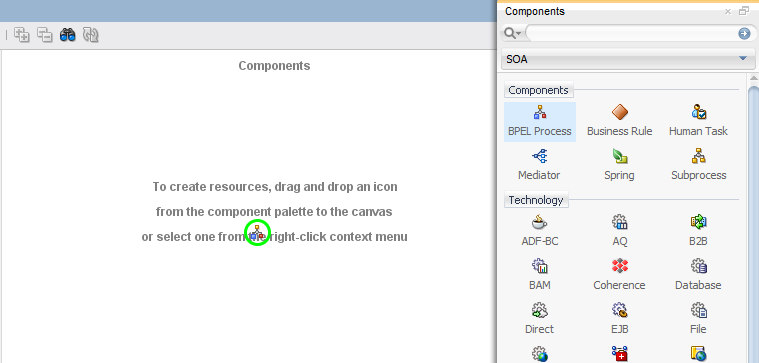
On the Create BPEL Process window, set the next values, and click on ok button.
| BPEL Specification | BPEL 2.0 Specification |
| Name | BPELProcessSynchronousGetFile |
| Namespace | http://xmlns.oracle.com/FTPAdapter/SynchronousGetFile/BPELProcessSynchronousGetFile |
| Directory | C:\JDeveloper\mywork\FTPAdapter\SynchronousGetFile\SOA\BPEL |
| Template Type | Web Service |
| Template | Asynchronous BPEL Process |
| Service Name | bpelprocesssynchronousgetfile_client |
| Expose as a SOAP Service | Checked |
| Delivery | async.persist |
| Transaction | |
| Input | {http://xmlns.oracle.com/FTPAdapter/SynchronousGetFile/BPELProcessSynchronousGetFile}process |
| Output | {http://xmlns.oracle.com/FTPAdapter/SynchronousGetFile/BPELProcessSynchronousGetFile}processResponse |
For example:


Now we need drag to add a new Service, with this action we will have available the Partner Links on .bpel file.

Now we are going to do double click on component: BPELProcessSynchronousGetFile, then on BPELProcessSynchronousGetFile.bpel file, we need to select the Invoke activity and drag to work area, then change the name to InvokeFtpReference
For example:


Then we need to drag onto a Partner Link to make a Web Service connection. On the Edit Invoke window, set the next values, and click on ok button.
| Input Variable | synchRead_InputVariable |
| Type | {http://xmlns.oracle.com/pcbpel/adapter/ftp/FTPAdapter/SynchronousGetFile/ftpReference}Empty_msg |
| Output Variable | synchRead_OutputVariable |
| Type | {http://xmlns.oracle.com/pcbpel/adapter/ftp/FTPAdapter/SynchronousGetFile/ftpReference}SynchRead_msg |
For example:


Until this part of this exercise we already covered the Synchronous Get File operation from the FTP Adapter Reference, if you run the service you should be able to see a successful reading of the files, but at this point we can do whatever you want,
in my case it will add the For Each activity and read the records one by one sending a mail using the incoming information (email).
I added the For Each activity
I added the Email activity


Now the next step is create a jar file to can deploy it on WebLogic Server, we need to select the SynchronousGetFile project and righ click, then chose the SynchronousGetFile... option.
For example:
On the Deployment Action window, set the next values, and click on next button.
| Deployment Action | Generate SAR File |
For example:

On the Deployment Configuration window, set the next values, and click on next button.
| New Revision ID | 1.0 |
For example:

On the Deployment Summary window, click on Finish button.
For example:

If all steps were successful, then you will view on yours JDeveloper IDE the correctly deployment.
For example:


Great! Thanks for sharing
ReplyDelete