SOA 12c - DB Adapter (Execute Pure SQL)
Information that you need to know:
Pure SQL Adapter is an option in the Oracle Database Adapter Wizard that allows you to type the SQL string directly and have an XSD/Web service generated automatically. The database tables are introspected dynamically in the Adapter Configuration Wizard to test the SQL and populate the XSD file better (that is, with valid return types.) The Pure SQL support allows the Oracle Database Adapter to deal with tables/views as entities and for dealing directly with SQL. You can use Pure SQL:
- for simple data projection style report queries
- in cases where the result set is not table oriented, such as select count(*)
- to perform an update or delete all
- when working with XMLType columns and xquery
- when using complex SQL, which are not modeled in the Adapter Configuration Wizard expression builder
You can use the Pure SQL Adapter with Oracle XMLTypes. It is a natural fit for inserting XML into XMLType tables and columns, and retrieving XML using xquery selects. Pure SQL is a natural fit for the Oracle Database Adapter that provides a relational-xml mapping that parallels XML DB(XDB) support. So, when using XDB the adapter should be as lightweight and transparent as possible, to let you focus on XDB and XQuery.For more detailed information read the following URL: https://docs.oracle.com/html/E10231_03/adptr_db.htm#BDCDJDGC
In this post, we will learn how create a SOA Project with Database Adapter - Operation Type: Execute Pure SQLThe next images are the SOA Project execution:


The first step is create a database table.
Note: The next table is used just to make use of COUNT function.
For example:
Once created the table in the Oracle Database, we are going to open JDeveloper IDE and click on File menu > New > Application.
For example:
On the Application window, set the next values, and click on next button.
| Application Name | DatabaseAdapter |
| Directory | C:\JDeveloper\mywork\DatabaseAdapter |
| Application Package Prefix |
For example:

On the Project window, set the next values, and click on next button.
| Project Name | ExecutePureSQL |
| Directory | C:\JDeveloper\mywork\DatabaseAdapter\ExecutePureSQL |
For example:

On the Configure SOA settings window, set the next values, and click on finish button.
| Standard Composite | Empty Composite |
For example:

After clicking on finish button, the JDeveloper IDE has the next appearance:

Then the next step, on External References section right click > Insert > Database, then enter the dbExecutePureSQL value on Service Name, then click on next button.
For Example:

Select the Oracle JDBC connection, then click on next.
Note: If you need additional information about how create a Oracle JDBC connection click on the next URL: Create Oracle DB Connection
For Example:

Then on Operation Type window, chose the Execute Pure SQL option, then click on next button.

Then on Custom SQL window, add this SQL statement:
SELECT COUNT(*) as COUNT FROM XXISC_FGG_EMPLOYEES
Click on ok button, then next button.

Then on Advanced Options window, we keep the same values settings by default, then click on next button.
For Example:
Then on JCA Endpoint Properties window, we keep the same values settings by default, then click on next button.
For Example:
Then on Finish window, click on finish button.
For Example:

Then the next step, we need to select the BPEL Process component, this component is located on the right side, on Components section, when you found this, select it and drag it to Components section on work area.
For Example: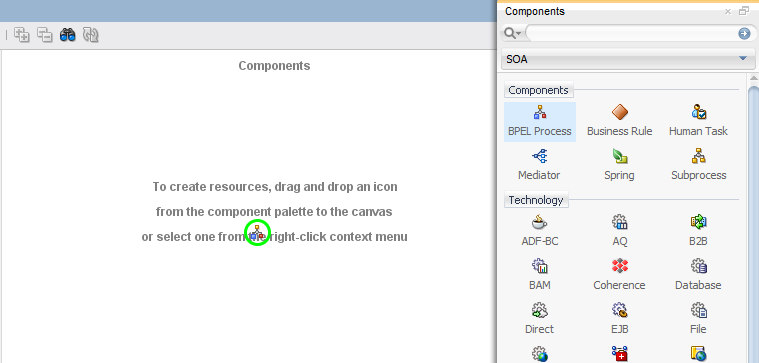
On the Create BPEL Process window, set the next values, and click on ok button.
| BPEL Specification | BPEL 2.0 Specification |
| Name | BPELExecutePureSQL |
| Namespace | http://xmlns.oracle.com/DatabaseAdapter/ExecutePureSQL/BPELExecutePureSQL |
| Directory | C:\JDeveloper\mywork\DatabaseAdapter\ExecutePureSQL\SOA\BPEL |
| Template Type | WebService |
| Template | Asynchronus BPEL Process |
| Service Name | bpelexecutepuresql_client |
| Expose as a SOAP Service | Checked |
| Delivery | async.persist |
| Transaction | async.persist |
| Input | {http://xmlns.oracle.com/DatabaseAdapter/ExecutePureSQL/BPELExecutePureSQL}process |
| Output | {http://xmlns.oracle.com/DatabaseAdapter/ExecutePureSQL/BPELExecutePureSQL}processResponse |
For example:


Now we need drag to add a new Reference, with this action we will have available the Partner Links on .bpel file.
For example:
Now we are going to do double click on component: BPELExecutePureSQL, then on BPELExecutePureSQL.bpel file, we need to select the Invoke activity and drag to work area, just in middle of receiveInput and callbackClient and change the name from Invoke1 to InvokeExecutePureSQL
For example:

Then we need to drag onto a Partner Link to make a Web Service connection. On the Edit Invoke window, set the next values, and click on ok button.
| Input Variable | dbExecutePureSQLInput |
| Type | {http://xmlns.oracle.com/pcbpel/adapter/db/DatabaseAdapter/ExecutePureSQL/dbExecutePureSQL}dbExecutePureSQLInput_msg |
| Output Variable | dbExecutePureSQLOutput |
| Type | {http://xmlns.oracle.com/pcbpel/adapter/db/DatabaseAdapter/ExecutePureSQL/dbExecutePureSQL}dbExecutePureSQLOutput_msg |
For example:


Then click on Apply button, next click on Ok button, then click on Save All button.

Now in this moment we have the Invoke activity to Database Web Service, the next step is create a new variable and assign to it the value of dbExecutePureSQLOutput variable.
We need to drag the Assign activity to work area after of InvokeExecutePureSQL component.
Then change the activity assign name from Assign1 to AssignCallback.
For example:
Now we need to double click on AssignCallback activity.
On the Edit Assign window, we need do the following, and do click on Ok button.
1.- Create the new variable with name countVariable
2.- Set the next values.
| $countVariable | $dbExecutePureSQLOutput.dbExecutePureSQLOutput/ns2:COUNT |
| $outputVariable.payload/client:result | string($countVariable) |
For example:


Now the next step is create a jar file to can deploy it on WebLogic Server, we need to select the ExecutePureSQL project and righ click, then chose the ExecutePureSQL... option.

On the Deployment Action window, set the next values, and click on next button.
| Deployment Action | Generate SAR File |
For example:

On the Deployment Configuration window, set the next values, and click on next button.
| New Revision ID | 1.0 |
For example:

On the Deployment Summary window, click on Finish button.
For example:

If all steps were successful, then you will view on yours JDeveloper IDE the correctly deployment.
For example:


Comments
Post a Comment