SOA 12c - HelloWorld
Information that you need to know:
Oracle SOA Suite is a complete and permanently working set of software for the creation, implementation and administration of a service-oriented architecture.
This includes developing service-oriented applications, integrating IT systems and service-oriented applications, and managing service-oriented business processes.
It connects to heterogeneous IT infrastructures and enables companies to gradually adopt SOA.
The components of the suite benefit from common capabilities, including a single management and deployment model, consistent tools, comprehensive security, and unified metadata management. For more detailed information read the following URL: https://www.oracle.com/middleware/technologies/soasuite.html
In this post, we will learn how create our first SOA Application.
We need to start the JDeveloper IDE.
Click on File menu, then click on New option, followed immediately by Application option.
For Example:
Then on the New Gallery window, choose Applications option in General Category, then choose SOA Application item.
For Example:
On the Application window, set the next values, and click on next button.
| Application Name | HelloWorld |
| Directory | C:\JDeveloper\mywork\HelloWorld |
| Application Package Prefix |
For example:

On the Project window, set the next values, and click on next button.
| Project Name | HelloWorld |
| Directory | C:\JDeveloper\mywork\HelloWorld |
For example:

On the Configure SOA settings window, set the next values, and click on finish button.
| Standard Composite | Empty Composite |
For example:

After clicking on finish button, the JDeveloper IDE has the next appearance:

Then the next step, we need to select the BPEL Process component, this component is located on the right side, on Components section, when you found this, select it and drag it to Components section on work area.
For Example: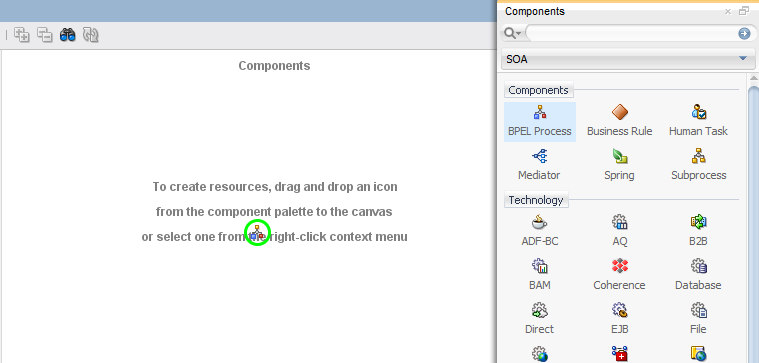
On the Create BPEL Process window, set the next values, and click on ok button.
| BPEL Specification | BPEL 2.0 Specification |
| Name | HelloWorldBPELProcess |
| Namespace | http://xmlns.oracle.com/HelloWorld/HelloWorld/HelloWorldBPELProcess |
| Directory | C:\JDeveloper\mywork\HelloWorld\HelloWorld\SOA\BPEL |
| Template Type | WebService |
| Template | Asynchronous BPEL Process |
| Service Name | helloworldbpelprocess_client |
| Expose as a SOAP Service | Checked |
| Delivery | async.persist |
| Transaction | |
| Input | {http://xmlns.oracle.com/HelloWorld/HelloWorld/HelloWorldBPELProcess}process |
| Output | {http://xmlns.oracle.com/HelloWorld/HelloWorld/HelloWorldBPELProcess}processResponse |
For example:


Now the next step is create a jar file to can deploy it on WebLogic Server, we need to select the HelloWorld project and right click, then chose the HelloWorld... option.

On the Deployment Action window, set the next values, and click on next button.
| Deployment Action | Generate SAR File |
For example:

On the Deployment Configuration window, set the next values, and click on next button.
| New Revision ID | 1.0 |
For example:

On the Deployment Summary window, click on Finish button.
For example:

If all steps were successful, then you will view on yours JDeveloper IDE the correctly deployment.
For example:

Once created the jar file, we need access to WebLogic Enterprise Management, and click on soa-infra option.
For example:

Then click on Deployed Composites tab, and click on Deploy... button
For example:

Then on Deploy SOA Composite: Select Archive page select the jar file created previously.
For example:


Then on Deploy SOA Composite: Select Target page select default folder.
For example:

Then on Deploy SOA Composite: Confirmation page click on deploy button.
For example:

If the composite was deployment successfully, you can be able to see the next windows.
For example:


It 's an amazing and awesome blog. Thanks for sharing
ReplyDeleteOracle OSB Training
OSB Online Training